USER GUIDE
From Script to Podcast
Everything you need to know about directing, recording, and producing your audio drama with AudioDrama.
// GETTING STARTED
Sign in with Google to create your account. The onboarding flow guides you through three steps:
// THE STUDIO
The studio is your main workspace. It shows your full script on the left with inline audio controls, and a voice panel on the right for managing character voices.
Each dialogue line shows:
- The character name and dialogue text (double-click to edit)
- A cyan clip bar showing generated TTS audio — click to play
- A purple clip bar for recorded takes — click to play
- A red record button (visible on hover) for per-line recording
- A
GENERATE FROM TAKEbutton when a take is selected
Sound effects appear inline as [SOUND: ...] lines with their own generation and playback controls.
// DIRECTOR'S TAKES
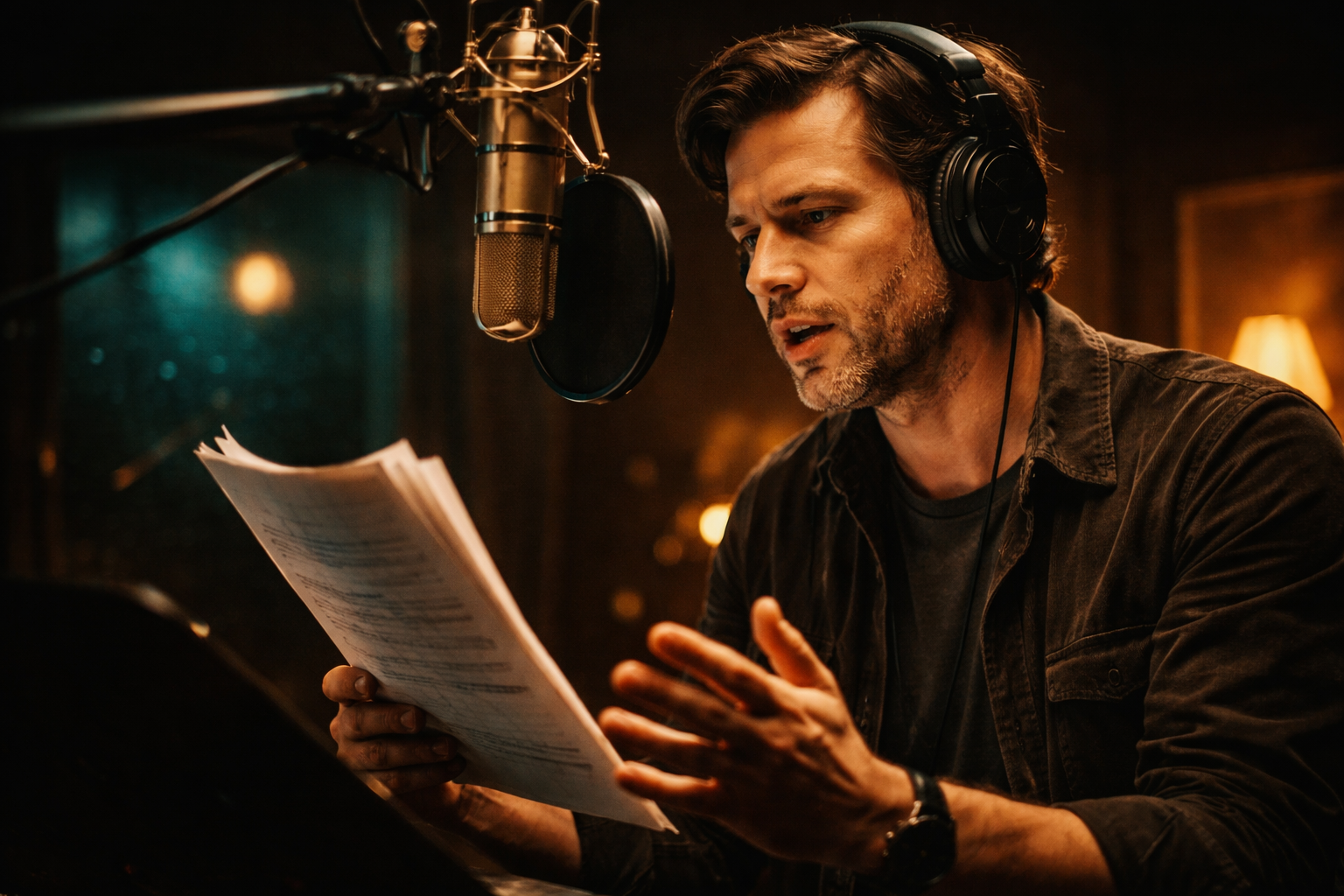
As a director, you can record your own performance of any line to guide how the AI voice should deliver it. There are two ways to record:
REC in any scene header to record the entire scene in one pass. After recording, the AI automatically aligns your performance to the script lines using speech recognition, splitting your recording into individual takes.You can record multiple takes per line. Click the T1, T2 badges to switch between takes. Hover over a take badge to reveal the × delete button.
// GENERATE FROM TAKE (STS)
This is the magic feature. Once you’ve recorded a director’s take, the GENERATE FROM TAKE button appears. It uses ElevenLabs’ Speech-to-Speech (STS) technology to:
- Take your recorded performance as a reference
- Apply the character’s assigned AI voice
- Preserve your pacing, emotion, inflection, and delivery
- Output a new clip that sounds like the character, performed your way
The result replaces the standard TTS clip and is labeled STS instead of TTS. This gives you precise directorial control over every line — the AI voice acts out your performance.
// VOICE DESIGN & LIBRARY
The Library page (top nav) has a voice browser and a voice designer.
+ DESIGN VOICE and describe the voice you want in plain English — e.g., “A warm female voice in her 30s with a slight British accent, confident and clear.” The AI generates several previews. Audition them, pick your favorite, give it a name, and save it to your library.CAST next to any uncast character to open the full casting modal with search, filters, and preview.// GENERATING AUDIO
The bottom bar has two generation buttons:
- GENERATE VOCALS — generates TTS audio for all dialogue lines using each character’s assigned voice. Shows a progress bar, live stats (completed, cached, skipped), estimated cost, and runtime.
- GENERATE SFX — generates sound effects for all [SOUND: ...] lines in the script.
Generated clips are cached — re-running generation only processes changed or new lines. If you edit a line’s text, its clip is automatically invalidated and will regenerate on the next run.
If no voices are cast, a prompt will guide you to cast at least one character before generating.
// PACING & GAPS
Between each dialogue line, hover to reveal a thin gap handle. Drag up or down to adjust the silence between lines (shown in milliseconds). The default gap is 400ms. These values are saved automatically and used during sequential playback.
Use the transport controls in the bottom bar (▶ play, ■ stop) to hear your entire episode played sequentially with your configured gaps.
// KEYBOARD SHORTCUTS
// PUBLISHING
Ready to direct your first show?
Import a script and start producing in minutes.